Guide
How to Add the Swiggy MCP to Claude and Order Instamart Groceries by Chat
On January 27, 2026, Swiggy quietly shipped one of the most consequential consumer launches of the year: official Model Context Protocol (MCP) servers for Food, Instamart, and Dineout. With that, Instamart became the first quick-commerce platform in the world to expose its 40,000+ SKU catalogue to AI assistants like Claude, ChatGPT, and Gemini.
What does that mean if you actually use Instamart? Once you connect the Swiggy MCP to Claude Desktop, you can type "restock my pantry, milk, eggs, bread, two onions, and 1 kg of basmati" and Claude will search the live catalogue, build the cart, apply available offers, and hand you a checkout link. No app-switching. No copy-paste. No hunting for the right pack size.
This guide walks through the exact setup steps, the prompt patterns that work, and the operational details that aren't obvious from the marketing posts, like why you need to keep the Swiggy mobile app closed during a session.
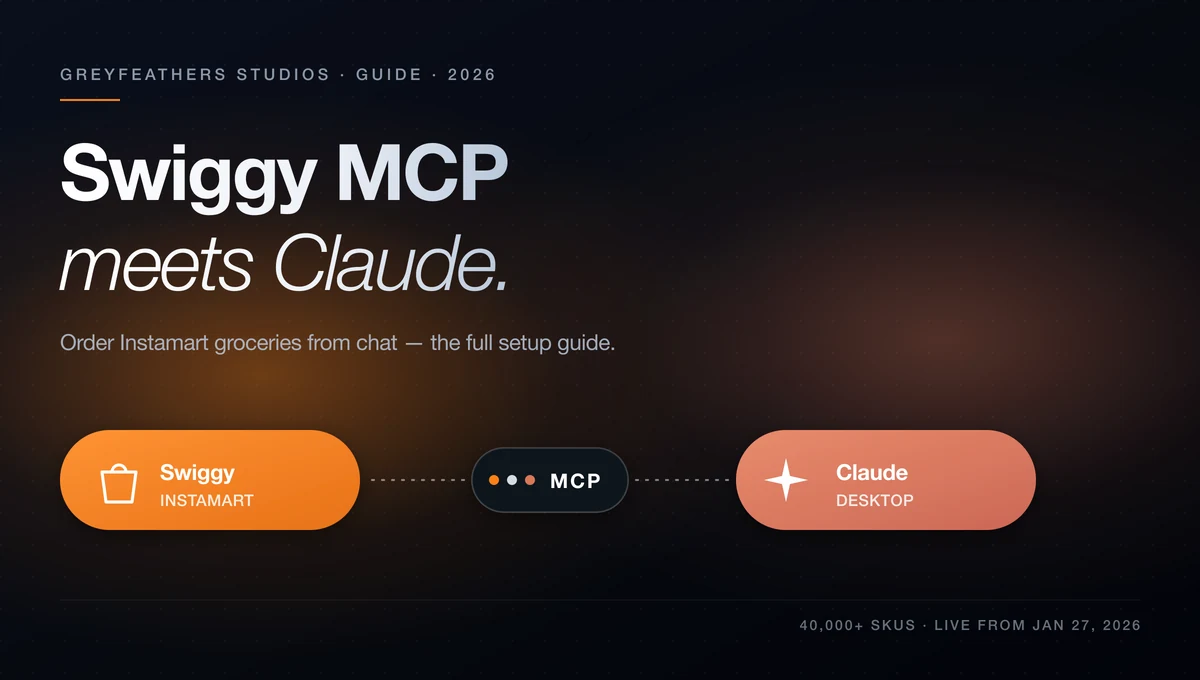
Setting up the Swiggy Instamart MCP in Claude (start to first order)
1. What the Model Context Protocol actually is
Model Context Protocol is an open standard that lets AI assistants connect to live services and data through a common tool-calling interface. Instead of you copy-pasting between Claude and the Swiggy app, the assistant calls Swiggy's tools directly (search, add to cart, place order, track delivery) and reports back in natural language.
Anthropic introduced MCP as an open spec, and Claude Desktop ships with first-class custom-connector support. Swiggy's launch gives you three endpoints to plug in: one each for Instamart, Food, and Dineout.
2. What the Swiggy MCP can do inside Claude
The Instamart MCP exposes the same surface area Swiggy's app uses: search, browse, cart, offers, checkout, tracking. In Claude, that means you can:
- Search Instamart's 40,000+ SKUs in plain English ("the cheaper Aashirvaad atta, 5 kg pack").
- Build, edit, and review your cart inside the chat thread.
- Apply available offers and coupons automatically.
- Place orders and track deliveries without opening the app.
- Optionally connect Swiggy Food for restaurant orders or Dineout for free reservations.
3. Prerequisites before you connect
A few small things will save you a frustrating debug loop later:
- Claude Desktop installed and signed in (Mac or Windows). The browser-only Claude.ai also supports custom connectors via Settings.
- An active Swiggy account with at least one saved address and a saved payment method.
- The Swiggy mobile app fully closed. Concurrent sessions on the same account collide and can log you out mid-order.
- A serviceable Indian pin code on your default Instamart address. The MCP can only place orders where Instamart already operates.
4. Step 1: Add the Swiggy Instamart MCP as a custom connector
In Claude Desktop, open Settings → Connectors → Add custom connector. Fill in:
- Name: Swiggy Instamart
- URL: https://mcp.swiggy.com/im
- Save and restart Claude Desktop so the connector registers cleanly.
- Optional: repeat for Food (https://mcp.swiggy.com/food) and Dineout (https://mcp.swiggy.com/dineout) if you want both.
5. Step 2: Authenticate with your Swiggy account
The first time you ask Claude to do anything that touches Swiggy, it will trigger an OAuth handshake. Your browser opens the Swiggy login page; once you approve, Swiggy redirects you back to Claude using a whitelisted redirect URI and the connector goes live.
If the redirect loops or fails, two things to check: you're using the official Claude Desktop or Claude.ai (third-party MCP clients aren't whitelisted yet), and the Swiggy mobile app is fully closed. Most auth failures trace back to one of those two.
6. Step 3: Place your first Instamart order from Claude
Once the connector shows Connected, you're done with setup. A few prompts that work well on day one:
- "Restock my essentials on Instamart: 1 L milk, a dozen eggs, atta, and bananas. Cheapest options that are above 4 stars."
- "Build an Instamart cart for Thai green curry for two: coconut milk, Thai basil, green chilies, kaffir lime leaves, jasmine rice."
- "What did I order from Instamart last week? Reorder only the toiletries."
- "Compare the three cheapest 5 kg atta options on Instamart and pick the best price-per-kg."
7. Power tips and prompt patterns that earn their keep
After the first few orders you'll start to feel where MCP shines and where it needs steering. A handful of patterns that consistently produce better carts:
- Anchor on intent, not SKUs. "Ingredients for paneer butter masala for four" beats listing items one at a time. Claude will source quantities from the recipe and adjust pack sizes for you.
- Cap the budget. Adding "keep the cart under ₹600" stops the assistant from upselling premium variants by default.
- Brand-lock when it matters. "Only Amul butter, only Aashirvaad atta" prevents substitutions you'd reject anyway.
- Save a system instruction in your Claude project (e.g. "Always offer one healthier swap before checkout") and it'll apply across every Instamart conversation.
8. Troubleshooting common Swiggy MCP issues
Most setup failures fall into a small set of patterns. Run these checks before you reinstall anything:
- "Could not connect to MCP server": restart Claude Desktop and confirm Settings → Connectors shows the Swiggy connector as Connected.
- "Login keeps looping": close the Swiggy mobile app fully (force quit, not just background) and retry. Concurrent sessions are the usual culprit.
- "Cart shows old items": ask Claude to "clear my Instamart cart" before starting a fresh order; carts persist across sessions.
- "Order didn't go through": switch from COD to a saved card or UPI. COD also can't be cancelled once placed, so prefer prepaid for anything you're unsure about.
- "My MCP client isn't supported": only Claude (Desktop and Claude.ai), ChatGPT, Cursor, VS Code, and localhost development URIs are whitelisted today.
9. Privacy, payments, and what Claude can and cannot see
The MCP boundary is narrower than people assume. Claude only sees the structured tool calls and responses: search queries, cart state, order confirmations. It does not see your password, your card details, or your Swiggy chat-with-support history.
Payment is completed on Swiggy's checkout page, never inside Claude. The OAuth scope grants the assistant permission to read and write your Instamart cart and place orders on your behalf, and you can revoke that access anytime from your Swiggy account settings.
Conversely, Swiggy doesn't see your free-form chat with Claude. It only sees the structured calls Claude chooses to make. "What should I cook tonight?" stays in Claude. "Add 200 g paneer to my cart" is what Swiggy sees.
Frequently asked questions
Is the Swiggy MCP free to use?
Yes. Swiggy doesn't charge a premium for ordering through MCP. You pay the same item prices, taxes, and delivery fees as you would in the Swiggy app. Claude itself is free for casual use; heavy MCP workflows may benefit from a Claude Pro subscription for higher rate limits.
Which Claude plan do I need to use the Swiggy MCP?
Custom connectors are available to all Claude Desktop and Claude.ai users, so you can start on the free tier. Claude Pro raises usage limits, which becomes useful only if you're running long, multi-step ordering sessions.
Does the Swiggy MCP work outside India?
No. Swiggy operates only in India, so the Instamart, Food, and Dineout MCPs serve only Indian pin codes that Swiggy already covers. The connector itself will install anywhere, but order placement requires a serviceable Indian address.
Can I cancel an order placed through Claude?
Online-paid Instamart orders follow the same cancellation window as orders placed in the app. Cash-on-delivery orders cannot be cancelled once placed, so prefer UPI or card if you want the option to cancel.
Is my Claude conversation shared with Swiggy?
No. Swiggy receives only the structured tool calls Claude makes (for example, "search milk" or "add 1 L Amul to cart"). It does not receive your free-form chat, system prompts, or anything else from your Claude session.
Can I use the Swiggy MCP with a third-party AI client?
Not yet. As of launch, only Claude (Desktop and Claude.ai), ChatGPT, Cursor, VS Code, and localhost development URIs are whitelisted for MCP authentication. Swiggy has indicated wider third-party support will follow once the security review completes.